3 easy ways to transfer esim from iphone to android : If you’re switching from an iPhone to an android phone , you’ll want to move your eSIM too. Unlike a physical SIM card , you can’t simply take it out and insert it into the new phone. Instead, you have to reactivate the eSIM on your Android device using your carrier’s app or a new QR code.
Don’t worry it’s an easy process ! This guide explains everything you need to know about how to transfer eSIM from iphone to android safely and quickly.
What You Need Before You Start
Before you begin the eSIM transfer, make sure you complete these steps:
- Check eSIM compatibility : both phones must support eSIM.
- Check carrier support : confirm that your mobile carrier supports eSIM on Android.
- Backup your iPhone data : transferring eSIM does not move your contacts or photos.
- Note down IMEI numbers : find them in Settings → About Phone.
- Ensure stable internet : Wi-Fi is needed for eSIM activation.
- Keep both phones charged : at least 50% battery is recommended.
- Keep your carrier account details : username, password, or customer ID.
Transfer eSIM from iPhone to Android Using Carrier App (Recommended)
This is the easiest way for most users. Many carriers now allow eSIM activation directly through their mobile app.
Steps:
- Install your carrier’s app on your new Android phone (like Airtel Thanks, Jio, T-Mobile, Verizon, etc.).
- Sign in using your carrier account details.
- Find the option to Activate eSIM or Transfer eSIM to new phone.
- Follow the instructions shown on the app.
- Once done, your carrier will automatically activate the eSIM on your Android phone.
- Wait for a few minutes until the network signal appears.
You can then make a test call or use mobile data to confirm everything is working.
Transfer eSIM from iPhone to Android Using QR Code
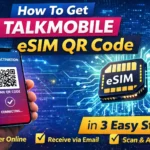
If your carrier doesn’t support app based transfer, they can issue a QR code for activation.
Step 1: Contact Your Carrier
Call your carrier’s customer care or visit their website.
Tell them you want to move your eSIM from iPhone to Android. They’ll deactivate the old eSIM and send you a new QR code.
Step 2: Add eSIM on Android
- On your Android phone, open Settings → Network & Internet → SIMs / Mobile Network.
- Tap + Add eSIM or Add Mobile Plan.
- Select Use QR Code and scan the QR code your carrier sent.
- Wait for your phone to finish setup and activate your eSIM.
Step 3: Confirm Activation
Once activated, you’ll see your carrier name in the status bar.
Try making a call or turning off Wi-Fi to check if mobile data works.
Transfer eSIM from iPhone to Android With Manual Setup (If QR Code Doesn’t Work)
If the QR code fails, your carrier can give you manual activation details such as:
- SM-DP+ Address
- Activation Code
Steps:
- Open Settings → Network & Internet → Add eSIM → Enter details manually.
- Type in the SM-DP+ address and activation code exactly as provided.
- Tap Next and wait for the eSIM to be added.
- Restart your phone once setup is complete.
Troubleshooting Tips
If your eSIM doesn’t activate, don’t worry these fixes often help:
- No network signal : Restart your phone and check again.
- QR code invalid : Request a new QR code from your carrier.
- Activation failed : Ensure your phone is unlocked and supports the carrier’s network.
- Still active on iPhone : Delete the old eSIM only after Android activation is confirmed.
- Slow activation : Wait a few minutes or contact customer care for help.
Important Things to Remember
- Don’t delete the eSIM from your iPhone before your Android eSIM is fully active.
- Use Wi-Fi during setup mobile data won’t work until eSIM activates.
- Keep your QR code private it’s linked to your personal account.
- If you switch carriers, make sure the new one supports eSIM on your phone model.
Final Checklist For Transfer eSIM from iPhone to Android
✅ iPhone and Android both support eSIM
✅ Carrier supports eSIM on Android
✅ Internet and QR code ready
✅ Old eSIM deleted only after new one is active
✅ Both phones charged
Conclusion
That’s it ! It’s all about how to transfer eSIM from iPhone to Android with 3 easy ways.
The process is mostly about reactivating your mobile plan on the new device. The safest and fastest method is to use your carrier’s app or QR code .
Once done, your Android phone will connect instantly with your old number and data plan no SIM card required !