Quick Answer
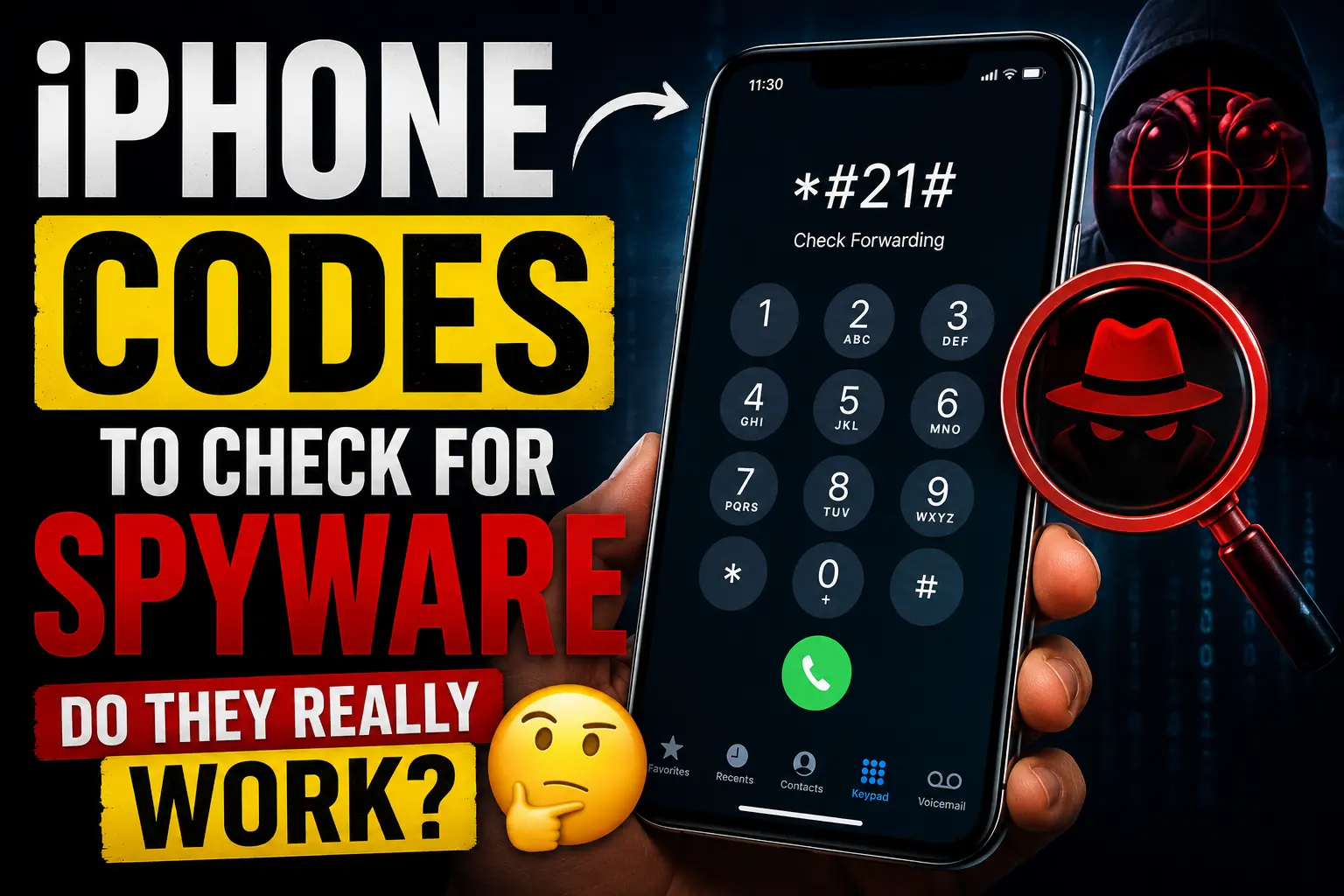
If you searched “iPhone codes to check for spyware,” you’ve probably seen *#21#, *#62#, or *#67# mentioned somewhere. Here’s the short version: none of these codes detect spyware. They’re carrier call forwarding codes left over from old GSM networks, and they’ve been recycled into a viral myth. This guide explains exactly what each code really does, why the spyware claim is false, and what to check instead if you’re genuinely worried your iPhone is compromised.
Why This Myth Exists
The claim traces back to old landline and early GSM era tricks for detecting illegal call taps, repackaged for smartphones in viral TikTok and Facebook posts. The logic sounds plausible “dial a code, see a hidden setting, catch the hacker” which is exactly why it spread. But iPhones don’t run spyware through call-forwarding settings. Modern spyware (stalkerware apps, malicious configuration profiles, or advanced tools like Pegasus) operates at the software level, not through carrier network features. A USSD code that queries your carrier’s switchboard has no way to see what’s installed on your device.
What These Codes Actually Do
Every code below is a carrier MMI/USSD code a command sent to your mobile network, not to iOS. Results depend on your carrier and may not work at all on CDMA networks like Verizon or US Cellular without carrier-specific alternatives.
Code | What it actually checks | What people wrongly think it does |
|---|---|---|
*#21# | Whether unconditional call forwarding is active (all calls redirect immediately) | “Reveals if a hacker is intercepting your calls” |
*#62# | Where calls go when your phone is unreachable (off, no signal, Airplane Mode) | “Shows if you’re being tracked” |
*#67# | Where calls go when your line is busy | “Exposes a spy’s phone number” |
*#61# | Where calls go when you don’t answer | “Detects wiretapping” |
*#004# | A combined summary of all conditional forwarding settings | “Full spyware scan” |
##002# | Cancels all call forwarding at once | (This one’s legitimately useful see below) |
*3001#12345#* | Opens Field Test Mode real signal/network diagnostic data | “Shows if someone is tracing your location” |
if you dial *#21# or *#004# and a number appears that you don’t recognize and it isn’t your carrier’s voicemail number, that’s worth investigating someone could have set up unauthorized call forwarding on your line (this is a real, if rare, form of call interception, usually tied to SIM swap fraud, not spyware). If that happens, dial ##002# to cancel all forwarding immediately, then contact your carrier to lock down your account with a port-out PIN.
Field Test Mode (*3001#12345#*) is real and genuinely useful for checking signal strength and cell tower connection data but it has no capability to detect spyware, hidden apps, or tracking software. It shows radio level network diagnostics, nothing about what’s running on your device.
Why iPhones Can’t Be Checked for Spyware With a Dial Code
This is the part most articles skip. iOS is a closed, sandboxed operating system apps (including malicious ones) can’t access system level call routing the way old feature phones could. Consumer spyware and stalkerware on iPhone almost always arrive through one of these three paths instead:
- A malicious configuration profile installed by someone with physical access to your phone (common in stalkerware cases involving partners or family members)
- An account-level compromise someone signed into your iCloud/Apple ID from another device and is syncing your messages, location, and photos without installing anything on your phone at all
- Advanced, targeted spyware (like Pegasus or Predator) used against high risk individuals journalists, activists, executives which exploits zero-day vulnerabilities rather than relying on an installed “app” you could ever spot in Settings
None of these show up through a call forwarding code, because none of them touch call forwarding.
Also read : Free eSIM trail in the USA No credit card required
What Actually Works : Real Ways to Check an iPhone for Spyware
1. Check for unknown configuration profiles
Go to Settings > General > VPN & Device Management. If you see a profile you didn’t install yourself (especially anything under “Device Management” rather than just VPN), that’s a red flag. Legitimate personal iPhones typically show nothing here at all. Tap any unfamiliar profile and remove it.
2. Review installed apps and their permissions
Go to Settings > Privacy & Security, and check which apps have access to your Microphone, Camera, and Location “Always.” Stalkerware often disguises itself as a generic sounding utility, battery, or “parental control” app. If you don’t recognize an app or don’t remember granting it permissions, investigate it.
3. Run Apple’s Safety Check
On iOS 16 and later, go to Settings > Privacy & Security > Safety Check. This built in tool (designed originally for people leaving abusive relationships) shows you every person and app with access to your location, photos, and shared data, and lets you revoke access in one tap. It’s the closest thing Apple offers to a genuine “who can see my stuff” audit.
4. Check for unfamiliar devices on your Apple ID
Go to Settings > [your name], scroll to the bottom, and review every device listed. If there’s a device you don’t recognize signed into your Apple ID, remove it and change your Apple ID password immediately this is a far more common spyware vector than anything installed locally on the phone.
5. Watch for behavioral red flags
No single symptom confirms spyware, but a combination of these is worth investigating:
- Battery draining significantly faster than usual, especially with the screen off
- The phone stays warm even when idle
- Data usage spikes you can’t explain (check Settings > Cellular for per-app data usage)
- Unexpected reboots or apps quitting on their own
6. Check for Apple’s threat notifications
Apple directly notifies users who may have been targeted by state-sponsored spyware like Pegasus, via a banner in the Apple ID interface and an email it will never ask you to click a link or provide credentials. If you’ve received one of these, contact Access Now’s Digital Security Helpline, a nonprofit that assists targeted individuals for free.
7. Enable Lockdown Mode if you’re at elevated risk
If you’re a journalist, activist, or public figure who believes you may be a specific target, Settings > Privacy & Security > Lockdown Mode drastically reduces your phone’s attack surface (blocking most message attachments, link previews, and unknown FaceTime calls) at the cost of some convenience.
8. For advanced/targeted cases: use a forensic tool
If you have specific reason to suspect state level spyware (not just consumer stalkerware), the nonprofit Mobile Verification Toolkit (MVT), built by Amnesty International’s Security Lab, can analyze an iPhone backup for known spyware indicators. This requires a computer and some technical comfort it’s not a casual check, but it’s the real tool professionals use, unlike a dial code.
When It’s Not Spyware – Common False Alarms
To be fair to your own peace of mind: most of the time, “signs of spyware” people search for have an innocent explanation.
- A number showing up under
*#61#/*#62#is almost always your carrier’s own voicemail number — Google it before panicking. - Battery drain is far more often caused by a background app refresh setting, a failing battery (check Settings > Battery > Battery Health), or a recent iOS update re-indexing your photos.
- Your phone feeling warm during a video call, GPS navigation, or a big app download is completely normal.
Frequently Asked Questions
Does #21# tell you if your iPhone is tapped?
No. It only shows whether unconditional call forwarding is active on your line a carrier network setting, not a spyware scan.
Is there any real code to detect spyware on iPhone?
No dial code can detect spyware on iOS. Spyware detection requires checking configuration profiles, Apple ID devices, app permissions, or in advanced cases, a forensic tool like MVT.
What does 3001#12345# actually show?
It opens Field Test Mode, a real diagnostic screen showing cellular signal strength and network data useful for connectivity troubleshooting, not for detecting tracking or spyware.
How do I know if someone installed spyware on my iPhone?
Check Settings > General > VPN & Device Management for unknown profiles, review your Apple ID’s connected devices, and run Safety Check. Behavioral signs like fast battery drain are suggestive but never conclusive on their own.
Can someone spy on my iPhone without installing an app?
Yes, the most common method isn’t an installed app at all, but unauthorized access to your Apple ID/iCloud account, which syncs messages, photos, and location without anything visible on your device.

Martin David is a seasoned tech writer and mobile technology expert with a Master’s degree in Electronics and Telecommunication Engineering. As the Senior Content Producer at Vox Mobile, he brings deep technical knowledge and a passion for simplifying complex topics related to eSIMs, smartphones, and digital connectivity. Martin is also an avid traveler who loves exploring new destinations, making him uniquely positioned to write about mobile tech from a global perspective.